hover animation preload
Showing posts with label printers support. Show all posts

How to connect a wired printer to wireless network using a wireless router
by Kelly in , , , ,

printer support
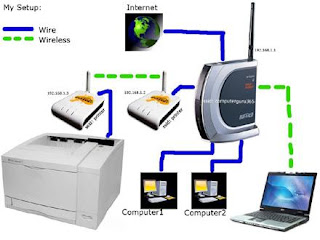
Connecting your inkjet printer to a wireless network will let you share the printer with many different computers without the hassle of tangled cables and connectors. Follow these steps make the connection.

Step 1
Check if your printer is network ready. Many newer models are designed to work on networks. Examine the documentation to see if your printer supports Wi-Fi (802.11x) or Bluetooth.

Step 2
Add network support to your printer. If your printer is not already wireless you can connect it to a wireless router using the RJ-45 Jack (it resembles a large telephone jack). You can also buy an expansion card that will add a jack or buy an external print server that will connect to the USB or parallel port.

Step 3
Connect your printer to the network. If your printer is not wired, you’ll have to connect it directly to your wireless router. Connect a networking cable from the RJ-45 Jack on the printer (or adapter) to the router. Plug it into any jack except the UPLINK. The printer should automatically connect to the network when turned on.

Step 4
Install printer drivers on all computers. Using the disc that came with the printer or drivers downloaded from the manufacturer, install the printer’s drivers onto each computer on the network.

Step 5
Print. You should be able to access the printer just like any other wireless device. Select the printer from the Print menu when you print.


Step 1
Install the printer. Set up the printer as normal on a machine that is already connected to the wireless network. Connect all necessary cables and install all necessary drivers.

Step 2
Open the printers and faxes folder. Click "Start," then "Control Panel," then "Printers and Other Hardware" and then "Printers and Faxes."

Step 3
Share your printer. Find the icon for the printer you just installed. Click the icon once and then select SHARE THIS PRINTER in the tasks pane on the left. Now, right click the icon, select properties and go to the SHARING tab. Click "Share Name," and then click "Okay."

Step 4
Connect to the printer. On the other computers within the network, open the control panel and click "Printers and Other Hardware." Select "Add a Printer."

Step 5
Select "Printer Connection." When prompted, select this option instead of the local printer. Find and select the printer you just installed and select it.

Step 6
Print as normal. Next time you print a page, send it to your networked printer.

Comments (1)

What's Behind HP's Printer Reorganization?
by Kelly in , , , ,

Reorganizations are usually done when a division, unit or company is performing poorly or not executing properly. They tend to be quite disruptive, complete with layoffs. So why in the world would a company reorganize one of its most successful divisions?

In the case of HP, it has begun a restructuring of its Imaging and Printing Group (IPG) to offer some efficiencies, but it won't be anywhere near as big a change as is normally associated with a reorg. No one, for example, is going to lose their job.

"There's no big change or anything to signal," Alyson Griffin, a spokesperson for HP, told InternetNews.com. "It's literally just a follow on from our Print 2.0 transformation last year and a continuing effort to streamline the organization."

HP's Print 2.0 initiative is designed to connect better with the digital age with support for new devices and means of capturing, sharing and displaying images.

The five previous divisions, run by Vyomesh "VJ" Joshi, who has led the group since 2000 and will remain its head, were LaserJet, InkJet, Graphics, supplies, and Enterprise. Graphics remains unchanged. It will continue to support everything from billboards to packing slips with their printing supplies.

Connecting products with their parts

One of the shortcomings of the old structure was that parts were separate from the devices, so things like ink and paper were separate from InkJet and LaserJet. Now all of the InkJet parts will be in the InkJet unit and LaserJet supplies like toner will under the same roof as the printer.

InkJet and its supplies, as well as Web solutions, will be streamlined into one group while LaserJet and enterprise, due to their natural pairing, will become the third group. "We basically said 'hey, let's make this tighter', so we can be more agile, reduce cost structure, enable growth and enhance the customer experience," said Griffin.

Analyst Shaw Wu of American Technology Research figured it wouldn't be a huge change. "I think it's just adapting the business to cope with the realities of the market, and what's likely to emerge as the newer reality," he said. "It's already a pretty decent business as it is. I think it's just a feeling that the new culture with [CEO Mark] Hurd is they don't want to rest on their laurels."

Indeed, the IPG group is one that should be treated with the old maxim "If it ain't broke, don't fix it." IPG revenue grew 6 percent year over year in the first quarter to $7.6 billion. Operating profit was $1.2 billion, or 16.2 percent of revenue.

Peter Grant, a research vice president with Gartner, said this looked like the work of Mark Hurd. "Hurd is good at trying to squeeze out redundancy," he said.

"I think he's just looking for synergy and he has aligned LaserJet with the commercial business, which makes sense, and InkJet with retail, which is where they sell. They have the same customers and the same channels."

Source:internetnews.com/hardware/article.php/3754226/Whats+Behind+HPs+Printer+Reorg.htm
Comments (0)