hover animation preload
Showing posts with label wireless printer. Show all posts

How to connect a wired printer to wireless network using a wireless router
by Kelly in , , , ,

printer support
Connecting your inkjet printer to a wireless network will let you share the printer with many different computers without the hassle of tangled cables and connectors. Follow these steps make the connection.

Step 1
Check if your printer is network ready. Many newer models are designed to work on networks. Examine the documentation to see if your printer supports Wi-Fi (802.11x) or Bluetooth.

Step 2
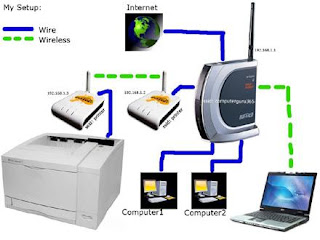
Add network support to your printer. If your printer is not already wireless you can connect it to a wireless router using the RJ-45 Jack (it resembles a large telephone jack). You can also buy an expansion card that will add a jack or buy an external print server that will connect to the USB or parallel port.

Step 3
Connect your printer to the network. If your printer is not wired, you’ll have to connect it directly to your wireless router. Connect a networking cable from the RJ-45 Jack on the printer (or adapter) to the router. Plug it into any jack except the UPLINK. The printer should automatically connect to the network when turned on.

Step 4
Install printer drivers on all computers. Using the disc that came with the printer or drivers downloaded from the manufacturer, install the printer’s drivers onto each computer on the network.

Step 5
Print. You should be able to access the printer just like any other wireless device. Select the printer from the Print menu when you print.


Step 1
Install the printer. Set up the printer as normal on a machine that is already connected to the wireless network. Connect all necessary cables and install all necessary drivers.

Step 2
Open the printers and faxes folder. Click "Start," then "Control Panel," then "Printers and Other Hardware" and then "Printers and Faxes."

Step 3
Share your printer. Find the icon for the printer you just installed. Click the icon once and then select SHARE THIS PRINTER in the tasks pane on the left. Now, right click the icon, select properties and go to the SHARING tab. Click "Share Name," and then click "Okay."

Step 4
Connect to the printer. On the other computers within the network, open the control panel and click "Printers and Other Hardware." Select "Add a Printer."

Step 5
Select "Printer Connection." When prompted, select this option instead of the local printer. Find and select the printer you just installed and select it.

Step 6
Print as normal. Next time you print a page, send it to your networked printer.

Comments (1)

Wireless HP printers have arrived
by Kelly in , ,

Printers go wireless: HP Photosmart C6388, all-in-one, will be among the first wireless-enabled printers to be launched in India. But owners of older printers can add a wireless adapter.

Internet access increasingly goes wireless — thanks to home, office and public WiFi hotspots — PCs are freeing themselves from Internet access cables. It was inevitable that the printer, too, should unshackle itself from the mess of wires.

Last week’s annual regional tech showcase of printer leader Hewlett Packard underlined the trend: At least half the consumer printers due for launch in India in the coming months will have wireless connectivity, through a built-in 802.11 link, otherwise known as WiFi.

As almost all laptops now sold come, by default, with the same feature, it will be easy to send files and pages from laptop to printer. “Wireless-enabled printers will be the rule rather than the exception,” Mr Chris Morgan, HP’s Vice- President for the Imaging and Printing group in Asia-Pacific and Japan, says.

India launch

Wireless-enabled HP printers, whose launch in India is imminent, include the Photosmart C4580, C6388 and C5380 — all multifunction print-scan-copy inkjets. In addition to WiFi capability, they have an optional Bluetooth link which enables quick transfer of pages or pictures from mobile phones or digital cameras, over a few metres. The machines are internationally priced at $139, $149 and $199 respectively. Even the cheapest of these can print 30 pages a minute in monochrome and 23 pages in colour. The HP trend means wireless is coming to the budget end of printing, and not just to the pricier offerings. Indeed, wireless will first be common in the consumer end of the printing spectrum — and not at the enterprise end, Mr Morgan says.

For legacy printers

For those who have legacy, non-wireless printers of any make, wireless kits (mostly Bluetooth) are available; so the old printers can print wirelessly by simply plugging in the USB device. This costs about $50 equivalent.

For home users who increasingly have at least one desktop in the family as well as a laptop for professional uses, wireless-enabled printers allow greater use of a WiFi home network. As home WiFi routers now cost less than Rs 2,500, many domestic as well as small-office users have already installed one to better utilise their wired broadband connection.

A wireless printer for such home or corporate users is just the last piece to be slotted into their wireless Web world.

Source:thehindubusinessline.com

Comments (0)